insta360 x5
Insta360 X5
Insta360 X5 setup instructions for stop motion animation or time-lapse photography with Dragonframe
Supported Versions
Requires Dragonframe 2026.01.1 or newer.
Live View
The Insta360 X5 provides a live view via its USB connection. The live view size is 1920x960.
Camera Settings
Dragonframe controls the Insta360 X5 ISO, shutter speed, white balance, capture format, and size.
Considerations
Insta360 support is experimental. We have added some special panoramic tools, and we think it will work well, but panoramic stop motion is not our forte.
Product Info
You can find the Insta360 X5 manual and specifications at the Insta360 website.
Setup Instructions
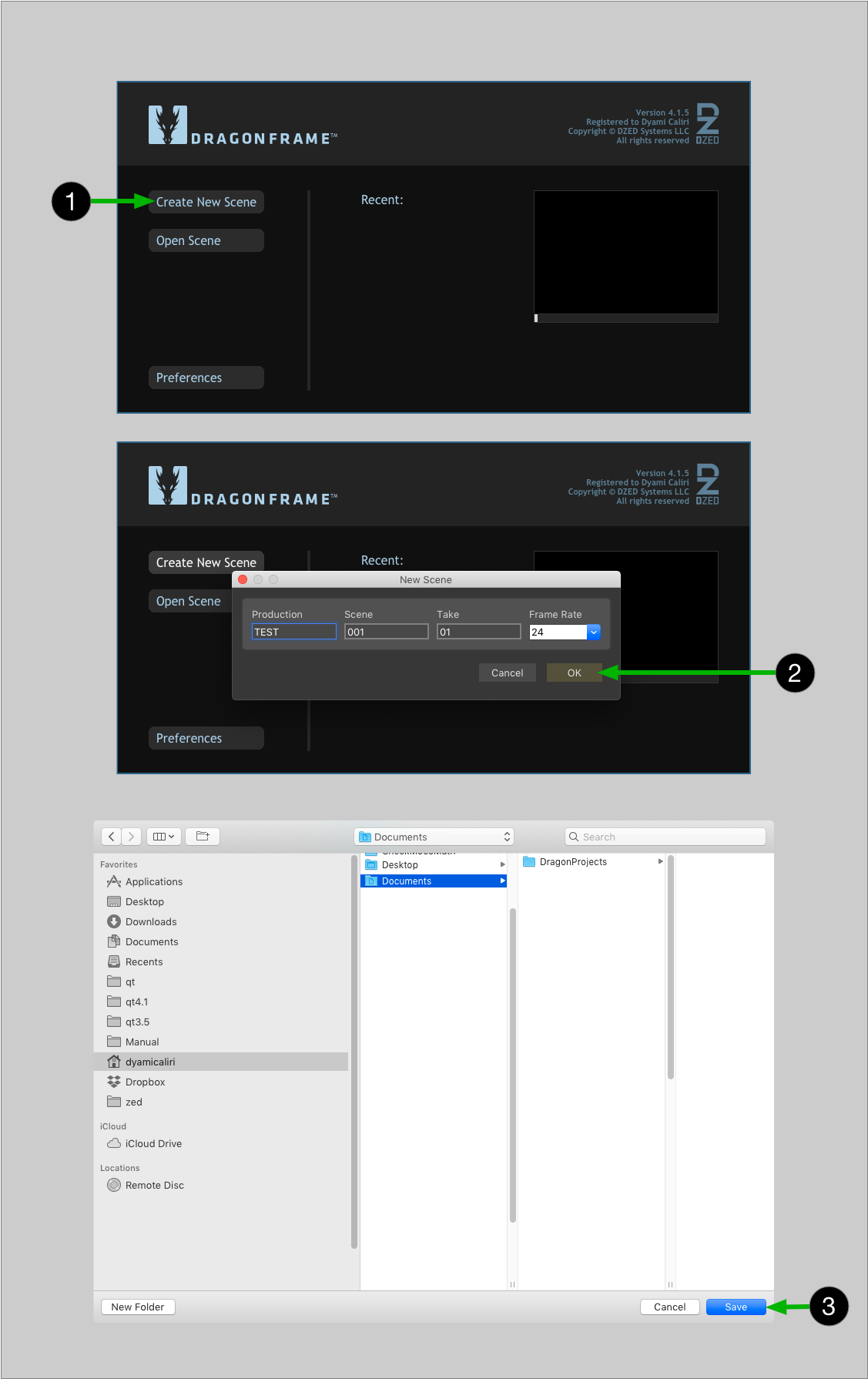
- Create a new scene or open an existing scene. (Dragonframe will not connect to your camera unless you have a scene open.)
- In Dragonframe's Preferences | Capture, select Enable Insta360 module.
- Connect your camera to the computer with an appropriate USB cable. (Make sure to follow the previous instructions before doing this.)
- A 'Panoramic Controls' guide layer will be available within the 'Composition Guides' section of the guide layers.
- These controls allow you to switch between the equirectangular image that the camera produces, and a spherical projection.
- When using the spherical projection, you can use the pan and tilt controls to adjust the viewing angle.
- Proceed to the Cinematography workspace to adjust the camera exposure settings, check focus, and take test shots.
- You will also need to fine-tune the live view conversion from dual-fisheye images to equirectangular.
- In the Cinematography workspace, adjust the 'EQUI APERTURE', 'EQUI TRANSLATION', and 'EQUI ROTATION'.
- It may not be possible to get a perfect projection. It is something we will continue to work on.