blackmagic intensity shuttle
Blackmagic Intensity Shuttle
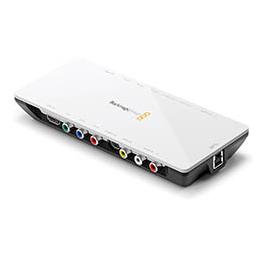
Blackmagic Intensity Shuttle setup instructions for stop motion animation or time-lapse photography with Dragonframe
Supported Versions
Requires Dragonframe 4.3.4 or newer. (5.x, 2024.x, 2025.x are newer).
Live View
The Blackmagic Intensity Shuttle provides a live video stream over its USB 3.0 connection.
Camera Settings
Dragonframe does not control this camera's settings.
HDMI Capture
This Blackmagic device is not a camera, but a device for capturing HDMI (or SDI) into a form your computer can use.
It is useful for providing a video assist from another camera, but will not trigger high-resolution on it.
Product Info
You can find the Blackmagic Intensity Shuttle manual and specifications at the Blackmagic website.
Setup Instructions
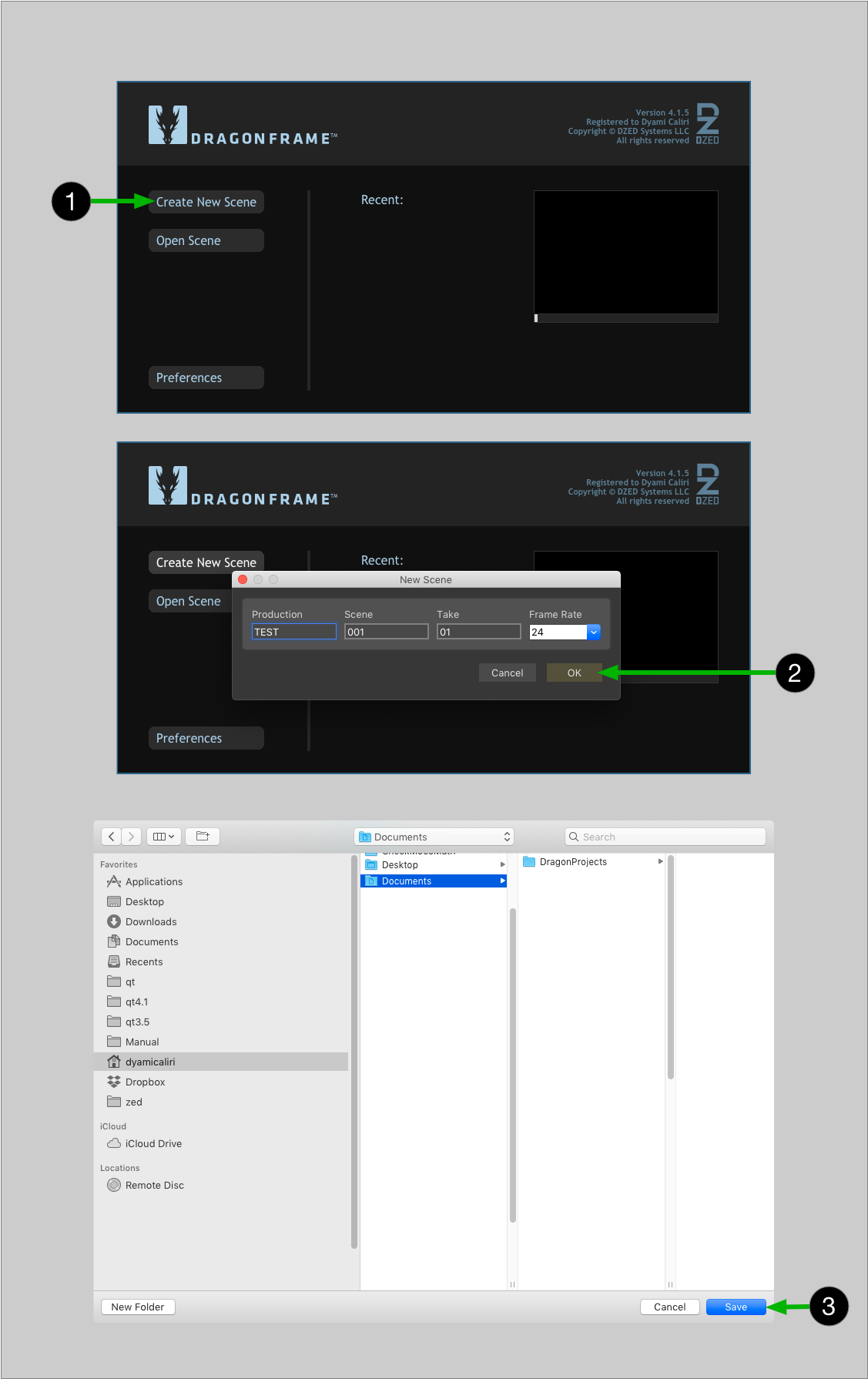
- Create a new scene or open an existing scene. (Dragonframe will not connect to your camera unless you have a scene open.)
- Make sure you have the latest Blackmagic Desktop Video software installed. Dragonframe won't detect your device without it.
- In Dragonframe's Preferences | Capture, select Enable Blackmagic module and restart Dragonframe.
- You may need to configure the device Input and Connection to match your camera's output. You can do this through the Capture | Video Settings... screen in Dragonframe.
- macOS Note: If you have installed the Blackmagic Desktop Video software, and the device is connected, but the computer doesn't detect it, check System Preferences | Security and Privacy | General to see if the application has been blocked.
- If you are using macOS 15 or newer, and Dragonframe 2024 or newer, and the camera does not appear, follow the instructions in our FAQ to resolve the issue.
- Proceed to the Cinematography workspace to adjust the camera settings, check focus, and take test shots.